Chapter 1 – Python Basics
 Read the author's other free Python books:
Python Basics
 Lesson 2 - Expressions, Data Types, & Variables
The Python programming language has a wide range of syntactical constructions, standard library functions, and interactive development environment features. Fortunately, you can ignore most of that; you just need to learn enough to write some handy little programs.
You will, however, have to learn some basic
programming concepts before you can do anything. Like a
wizard-in-training, you might think these concepts seem arcane and
tedious, but with some knowledge and practice, you’ll be able to command
your computer like a magic wand to perform incredible feats.
This chapter has a few examples that encourage you
to type into the interactive shell, which lets you execute Python
instructions one at a time and shows you the results instantly. Using
the interactive shell is great for learning what basic Python
instructions do, so give it a try as you follow along. You’ll remember
the things you do much better than the things you only read.
Entering Expressions into the Interactive Shell
You
run the interactive shell by launching IDLE, which you installed with
Python in the introduction. On Windows, open the Start menu, select All Programs ▸ Python 3.3, and then select IDLE (Python GUI). On OS X, select Applications ▸ MacPython 3.3 ▸ IDLE. On Ubuntu, open a new Terminal window and enter
idle3.
A window with the
>>> prompt should appear; that’s the interactive shell. Enter 2 + 2 at the prompt to have Python do some simple math.>>> 2 + 2
4
The IDLE window should now show some text like this:
Python 3.3.2 (v3.3.2:d047928ae3f6, May 16 2013, 00:06:53) [MSC v.1600 64 bit
(AMD64)] on win32
Type "copyright", "credits" or "license()" for more information.
>>> 2 + 2
4
>>>
In Python,
2 + 2 is called an expression, which is the most basic kind of programming instruction in the language. Expressions consist of values (such as 2) and operators (such as +), and they can always evaluate
(that is, reduce) down to a single value. That means you can use
expressions anywhere in Python code that you could also use a value.
In the previous example,
2 + 2 is evaluated down to a single value, 4. A single value with no operators is also considered an expression, though it evaluates only to itself, as shown here:>>> 2
2
There are plenty of other operators you can use in Python expressions, too. For example, Table 1-1 lists all the math operators in Python.
Table 1-1. Math Operators from Highest to Lowest Precedence
|
Operator
|
Operation
|
Example
|
Evaluates to...
|
|---|---|---|---|
** |
Exponent
|
2 ** 3 |
8 |
% |
Modulus/remainder
|
22 % 8 |
6 |
// |
Integer division/floored quotient
|
22 // 8 |
2 |
/ |
Division
|
22 / 8 |
2.75 |
* |
Multiplication
|
3 * 5 |
15 |
- |
Subtraction
|
5 - 2 |
3 |
+ |
Addition
|
2 + 2 |
4 |
The order of operations (also called precedence) of Python math operators is similar to that of mathematics. The
** operator is evaluated first; the *, /, //, and % operators are evaluated next, from left to right; and the + and -
operators are evaluated last (also from left to right). You can use
parentheses to override the usual precedence if you need to. Enter the
following expressions into the interactive shell:>>> 2 + 3 * 6 20 >>> (2 + 3) * 6 30 >>> 48565878 * 578453 28093077826734 >>> 2 ** 8 256 >>> 23 / 7 3.2857142857142856 >>> 23 // 7 3 >>> 23 % 7 2 >>> 2 + 2 4 >>> (5 - 1) * ((7 + 1) / (3 - 1)) 16.0
In each case, you as the programmer must enter the
expression, but Python does the hard part of evaluating it down to a
single value. Python will keep evaluating parts of the expression until
it becomes a single value, as shown in Figure 1-1.
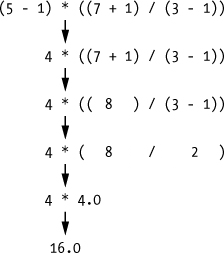
Figure 1-1. Evaluating an expression reduces it to a single value.
These
rules for putting operators and values together to form expressions are
a fundamental part of Python as a programming language, just like the
grammar rules that help us communicate. Here’s an example:
-
This is a grammatically correct English sentence.
-
This grammatically is sentence not English correct a.
The second line is difficult to parse because it
doesn’t follow the rules of English. Similarly, if you type in a bad
Python instruction, Python won’t be able to understand it and will
display a
SyntaxError error message, as shown here:>>> 5 + File "<stdin>", line 1 5 + ^ SyntaxError: invalid syntax >>> 42 + 5 + * 2 File "<stdin>", line 1 42 + 5 + * 2 ^ SyntaxError: invalid syntax
You can always test to see whether an instruction
works by typing it into the interactive shell. Don’t worry about
breaking the computer: The worst thing that could happen is that Python
responds with an error message. Professional software developers get
error messages while writing code all the time.
The Integer, Floating-Point, and String Data Types
Remember that expressions are just values combined with operators, and they always evaluate down to a single value. A data type is a category for values, and every value belongs to exactly one data type. The most common data types in Python are listed in Table 1-2. The values
-2 and 30, for example, are said to be integer values. The integer (or int) data type indicates values that are whole numbers. Numbers with a decimal point, such as 3.14, are called floating-point numbers (or floats). Note that even though the value 42 is an integer, the value 42.0 would be a floating-point number.
Table 1-2. Common Data Types
|
Data type
|
Examples
|
|---|---|
|
Integers
|
-2, -1, 0, 1, 2, 3, 4, 5 |
|
Floating-point numbers
|
-1.25, -1.0, --0.5, 0.0, 0.5, 1.0, 1.25 |
|
Strings
|
'a', 'aa', 'aaa', 'Hello!', '11 cats' |
Python programs can also have text values called strings, or strs (pronounced “stirs”). Always surround your string in single quote (
') characters (as in 'Hello' or 'Goodbye cruel world!') so Python knows where the string begins and ends. You can even have a string with no characters in it, '', called a blank string. Strings are explained in greater detail in Chapter 4.
If you ever see the error message
SyntaxError: EOL while scanning string literal, you probably forgot the final single quote character at the end of the string, such as in this example:>>> 'Hello world!
SyntaxError: EOL while scanning string literal
String Concatenation and Replication
The meaning of an operator may change based on the data types of the values next to it. For example,
+ is the addition operator when it operates on two integers or floating-point values. However, when + is used on two string values, it joins the strings as the string concatenation operator. Enter the following into the interactive shell:>>> 'Alice' + 'Bob'
'AliceBob'
The expression evaluates down to a single, new
string value that combines the text of the two strings. However, if you
try to use the
+ operator on a string and an integer value, Python will not know how to handle this, and it will display an error message.>>> 'Alice' + 42
Traceback (most recent call last):
File "<pyshell#26>", line 1, in <module>
'Alice' + 42
TypeError: Can't convert 'int' object to str implicitly
The error message
Can't convert 'int' object to str implicitly means that Python thought you were trying to concatenate an integer to the string 'Alice'.
Your code will have to explicitly convert the integer to a string,
because Python cannot do this automatically. (Converting data types will
be explained in Dissecting Your Program when talking about the str(), int(), and float() functions.)
The
* operator is used for multiplication when it operates on two integer or floating-point values. But when the * operator is used on one string value and one integer value, it becomes the string replication operator. Enter a string multiplied by a number into the interactive shell to see this in action.>>> 'Alice' * 5
'AliceAliceAliceAliceAlice'
The expression evaluates down to a single string
value that repeats the original a number of times equal to the integer
value. String replication is a useful trick, but it’s not used as often
as string concatenation.
The
* operator can be
used with only two numeric values (for multiplication) or one string
value and one integer value (for string replication). Otherwise, Python
will just display an error message.>>> 'Alice' * 'Bob' Traceback (most recent call last): File "<pyshell#32>", line 1, in <module> 'Alice' * 'Bob' TypeError: can't multiply sequence by non-int of type 'str' >>> 'Alice' * 5.0 Traceback (most recent call last): File "<pyshell#33>", line 1, in <module> 'Alice' * 5.0 TypeError: can't multiply sequence by non-int of type 'float'
It makes sense that Python wouldn’t understand these
expressions: You can’t multiply two words, and it’s hard to replicate
an arbitrary string a fractional number of times.
Storing Values in Variables
A variable
is like a box in the computer’s memory where you can store a single
value. If you want to use the result of an evaluated expression later in
your program, you can save it inside a variable.
Assignment Statements
You’ll store values in variables with an assignment statement. An assignment statement consists of a variable name, an equal sign (called the assignment operator), and the value to be stored. If you enter the assignment statement
spam = 42, then a variable named spam will have the integer value 42 stored in it.
Think of a variable as a labeled box that a value is placed in, as in Figure 1-2.
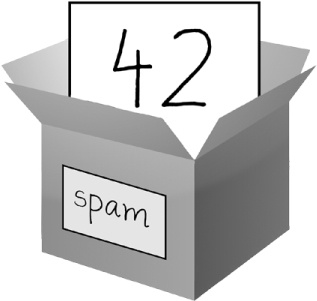
Figure 1-2. spam = 42 is like telling the program, “The variable spam now has the integer value 42 in it.”
For example, enter the following into the interactive shell:
❶ >>> spam = 40
   >>> spam
   40
   >>> eggs = 2
❷ >>> spam + eggs
   42
   >>> spam + eggs + spam
   82
③ >>> spam = spam + 2
   >>> spam
   42
A variable is initialized
(or created) the first time a value is stored in it ❶. After that, you
can use it in expressions with other variables and values ❷. When a
variable is assigned a new value ③, the old value is forgotten, which is
why
spam evaluated to 42 instead of 40 at the end of the example. This is called overwriting the variable. Enter the following code into the interactive shell to try overwriting a string:>>> spam = 'Hello' >>> spam 'Hello' >>> spam = 'Goodbye' >>> spam 'Goodbye'
Just like the box in Figure 1-3, the
spam variable in this example stores 'Hello' until you replace it with 'Goodbye'.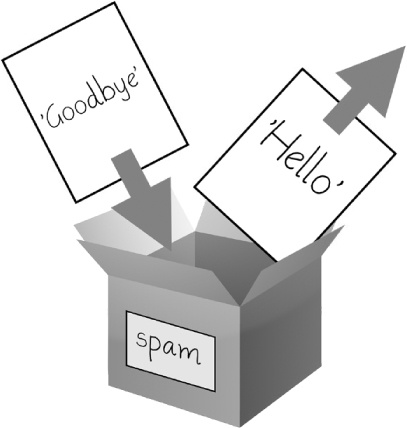
Figure 1-3. When a new value is assigned to a variable, the old one is forgotten.
Variable Names
Table 1-3 has examples of legal variable names. You can name a variable anything as long as it obeys the following three rules:
-
It can be only one word.
-
It can use only letters, numbers, and the underscore (
_) character. -
It can’t begin with a number.
Table 1-3. Valid and Invalid Variable Names
|
Valid variable names
|
Invalid variable names
|
|---|---|
balance |
current-balance (hyphens are not allowed) |
currentBalance |
current balance (spaces are not allowed) |
current_balance |
4account (can’t begin with a number) |
_spam |
42 (can’t begin with a number) |
SPAM |
total_$um (special characters like $ are not allowed) |
account4 |
'hello' (special characters like ' are not allowed) |
Variable names are case-sensitive, meaning that
spam, SPAM, Spam, and sPaM are four different variables. It is a Python convention to start your variables with a lowercase letter.
This book uses camelcase for variable names instead of underscores; that is, variables
lookLikeThis instead of looking_like_this.
Some experienced programmers may point out that the official Python
code style, PEP 8, says that underscores should be used. I
unapologetically prefer camelcase and point to “A Foolish Consistency Is
the Hobgoblin of Little Minds” in PEP 8 itself:“Consistency with the style guide is important. But most importantly: know when to be inconsistent—sometimes the style guide just doesn’t apply. When in doubt, use your best judgment.”
A good variable name describes the data it contains.
Imagine that you moved to a new house and labeled all of your moving
boxes as Stuff. You’d never find anything! The variable names
spam, eggs, and bacon
are used as generic names for the examples in this book and in much of
Python’s documentation (inspired by the Monty Python “Spam” sketch), but
in your programs, a descriptive name will help make your code more
readable.Your First Program
Lesson 3 - Your First Program
While the interactive shell is good for running
Python instructions one at a time, to write entire Python programs,
you’ll type the instructions into the file editor. The file editor
is similar to text editors such as Notepad or TextMate, but it has some
specific features for typing in source code. To open the file editor in
IDLE, select File▸New File.
The window that appears should contain a cursor
awaiting your input, but it’s different from the interactive shell,
which runs Python instructions as soon as you press ENTER.
The file editor lets you type in many instructions, save the file, and
run the program. Here’s how you can tell the difference between the two:
-
The interactive shell window will always be the one with the
>>>prompt. -
The file editor window will not have the
>>>prompt.
Now it’s time to create your first program! When the file editor window opens, type the following into it:
❶ # This program says hello and asks for my name.

❷ print('Hello world!')
   print('What is your name?')    # ask for their name
③ myName = input()
④ print('It is good to meet you, ' + myName)
⑤ print('The length of your name is:')
   print(len(myName))
⑥ print('What is your age?')    # ask for their age
   myAge = input()
   print('You will be ' + str(int(myAge) + 1) + ' in a year.')
Once
you’ve entered your source code, save it so that you won’t have to
retype it each time you start IDLE. From the menu at the top of the file
editor window, select File▸Save As. In the Save As window, enter
hello.py in the File Name field and then click Save.
You should save your programs every once in a while
as you type them. That way, if the computer crashes or you accidentally
exit from IDLE, you won’t lose the code. As a shortcut, you can press CTRL-S on Windows and Linux or ⌘-S on OS X to save your file.
Once you’ve saved, let’s run our program. Select Run▸Run Module or just press the F5
key. Your program should run in the interactive shell window that
appeared when you first started IDLE. Remember, you have to press F5
from the file editor window, not the interactive shell window. Enter
your name when your program asks for it. The program’s output in the
interactive shell should look something like this:
Python 3.3.2 (v3.3.2:d047928ae3f6, May 16 2013, 00:06:53) [MSC v.1600 64 bit
(AMD64)] on win32
Type "copyright", "credits" or "license()" for more information.
>>> ================================ RESTART ================================
>>>
Hello world!
What is your name?
Al
It is good to meet you, Al
The length of your name is:
2
What is your age?
4
You will be 5 in a year.
>>>
When there are no more lines of code to execute, the Python program terminates; that is, it stops running. (You can also say that the Python program exits.)
You can close the file editor by clicking the X at the top of the window. To reload a saved program, select File▸Open from the menu. Do that now, and in the window that appears, choose hello.py, and click the Open button. Your previously saved hello.py program should open in the file editor window.
Dissecting Your Program
With your new program open in the file editor, let’s
take a quick tour of the Python instructions it uses by looking at what
each line of code does.
Comments
The following line is called a comment.
❶ # This program says hello and asks for my name.
Python ignores comments, and you can use them to
write notes or remind yourself what the code is trying to do. Any text
for the rest of the line following a hash mark (
#) is part of a comment.
Sometimes, programmers will put a
# in front of a line of code to temporarily remove it while testing a program. This is called commenting out code, and it can be useful when you’re trying to figure out why a program doesn’t work. You can remove the # later when you are ready to put the line back in.
Python also ignores the blank line after the
comment. You can add as many blank lines to your program as you want.
This can make your code easier to read, like paragraphs in a book.
The print() Function
The
print() function displays the string value inside the parentheses on the screen.❷ print('Hello world!')
print('What is your name?') # ask for their name
The line
print('Hello world!') means “Print out the text in the string 'Hello world!'.” When Python executes this line, you say that Python is calling the print() function and the string value is being passed to the function. A value that is passed to a function call is an argument.
Notice that the quotes are not printed to the screen. They just mark
where the string begins and ends; they are not part of the string value.Note
You can also use this function to put a blank line on the screen; just call
print() with nothing in between the parentheses.
When writing a function name, the opening and
closing parentheses at the end identify it as the name of a function.
This is why in this book you’ll see
print() rather than print. Chapter 2 describes functions in more detail.The input() Function
The
input() function waits for the user to type some text on the keyboard and press ENTER.③ myName = input()
This function call evaluates to a string equal to the user’s text, and the previous line of code assigns the
myName variable to this string value.
You can think of the
input() function call as an expression that evaluates to whatever string the user typed in. If the user entered 'Al', then the expression would evaluate to myName = 'Al'.Printing the User’s Name
The following call to
print() actually contains the expression 'It is good to meet you, ' + myName between the parentheses.④ print('It is good to meet you, ' + myName)
Remember that expressions can always evaluate to a single value. If
'Al' is the value stored in myName on the previous line, then this expression evaluates to 'It is good to meet you, Al'. This single string value is then passed to print(), which prints it on the screen.The len() Function
You can pass the
len()
function a string value (or a variable containing a string), and the
function evaluates to the integer value of the number of characters in
that string.⑤ print('The length of your name is:')
print(len(myName))
Enter the following into the interactive shell to try this:
>>> len('hello')
5
>>> len('My very energetic monster just scarfed nachos.')
46
>>> len('')
0
Just like those examples,
len(myName) evaluates to an integer. It is then passed to print() to be displayed on the screen. Notice that print()
allows you to pass it either integer values or string values. But
notice the error that shows up when you type the following into the
interactive shell:>>> print('I am ' + 29 + ' years old.')
Traceback (most recent call last):
File "<pyshell#6>", line 1, in <module>
print('I am ' + 29 + ' years old.')
TypeError: Can't convert 'int' object to str implicitly
The
print() function isn’t causing that error, but rather it’s the expression you tried to pass to print(). You get the same error message if you type the expression into the interactive shell on its own.>>> 'I am ' + 29 + ' years old.'
Traceback (most recent call last):
File "<pyshell#7>", line 1, in <module>
'I am ' + 29 + ' years old.'
TypeError: Can't convert 'int' object to str implicitly
Python gives an error because you can use the
+
operator only to add two integers together or concatenate two strings.
You can’t add an integer to a string because this is ungrammatical in
Python. You can fix this by using a string version of the integer
instead, as explained in the next section.The str(), int(), and float() Functions
If you want to concatenate an integer such as
29 with a string to pass to print(), you’ll need to get the value '29', which is the string form of 29. The str() function can be passed an integer value and will evaluate to a string value version of it, as follows:>>> str(29) '29' >>> print('I am ' + str(29) + ' years old.') I am 29 years old.
Because
str(29) evaluates to '29', the expression 'I am ' + str(29) + ' years old.' evaluates to 'I am ' + '29' + ' years old.', which in turn evaluates to 'I am 29 years old.'. This is the value that is passed to the print() function.
The
str(), int(), and float()
functions will evaluate to the string, integer, and floating-point
forms of the value you pass, respectively. Try converting some values in
the interactive shell with these functions, and watch what happens.>>> str(0) '0' >>> str(-3.14) '-3.14' >>> int('42') 42 >>> int('-99') -99 >>> int(1.25) 1 >>> int(1.99) 1 >>> float('3.14') 3.14 >>> float(10) 10.0
The previous examples call the
str(), int(), and float() functions and pass them values of the other data types to obtain a string, integer, or floating-point form of those values.
The
str() function is handy when you have an integer or float that you want to concatenate to a string. The int() function is also helpful if you have a number as a string value that you want to use in some mathematics. For example, the input() function always returns a string, even if the user enters a number. Enter spam = input() into the interactive shell and enter 101 when it waits for your text.>>> spam = input() 101 >>> spam '101'
The value stored inside
spam isn’t the integer 101 but the string '101'. If you want to do math using the value in spam, use the int() function to get the integer form of spam and then store this as the new value in spam.>>> spam = int(spam) >>> spam 101
Now you should be able to treat the
spam variable as an integer instead of a string.>>> spam * 10 / 5
202.0
Note that if you pass a value to
int() that it cannot evaluate as an integer, Python will display an error message.>>> int('99.99') Traceback (most recent call last): File "<pyshell#18>", line 1, in <module> int('99.99') ValueError: invalid literal for int() with base 10: '99.99' >>> int('twelve') Traceback (most recent call last): File "<pyshell#19>", line 1, in <module> int('twelve') ValueError: invalid literal for int() with base 10: 'twelve'
The
int() function is
also useful if you need to round a floating-point number down. If you
want to round a floating-point number up, just add 1 to it afterward.>>> int(7.7) 7 >>> int(7.7) + 1 8
In your program, you used the
int() and str() functions in the last three lines to get a value of the appropriate data type for the code.⑥ print('What is your age?') # ask for their age
myAge = input()
print('You will be ' + str(int(myAge) + 1) + ' in a year.')
The
myAge variable contains the value returned from input(). Because the input() function always returns a string (even if the user typed in a number), you can use the int(myAge) code to return an integer value of the string in myAge. This integer value is then added to 1 in the expression int(myAge) + 1.
The result of this addition is passed to the
str() function: str(int(myAge) + 1). The string value returned is then concatenated with the strings 'You will be ' and ' in a year.' to evaluate to one large string value. This large string is finally passed to print() to be displayed on the screen.
Let’s say the user enters the string
'4' for myAge. The string '4' is converted to an integer, so you can add one to it. The result is 5. The str() function converts the result back to a string, so you can concatenate it with the second string, 'in a year.', to create the final message. These evaluation steps would look something like Figure 1-4.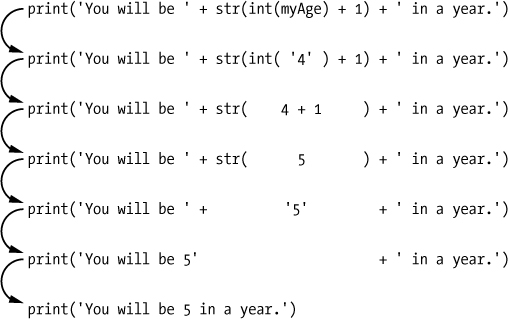
Figure 1-4. The evaluation steps, if
4 was stored in myAgeSummary
You can compute expressions with a calculator or
type string concatenations with a word processor. You can even do string
replication easily by copying and pasting text. But expressions, and
their component values—operators, variables, and function calls—are the
basic building blocks that make programs. Once you know how to handle
these elements, you will be able to instruct Python to operate on large
amounts of data for you.
It is good to remember the different types of operators (
+, -, *, /, //, %, and ** for math operations, and + and * for string operations) and the three data types (integers, floating-point numbers, and strings) introduced in this chapter.
A few different functions were introduced as well. The
print() and input() functions handle simple text output (to the screen) and input (from the keyboard). The len() function takes a string and evaluates to an int of the number of characters in the string. The str(), int(), and float() functions will evaluate to the string, integer, or floating-point number form of the value they are passed.
In the next chapter, you will learn how to tell
Python to make intelligent decisions about what code to run, what code
to skip, and what code to repeat based on the values it has. This is
known as flow control, and it allows you to write programs that make intelligent decisions.
Practice Questions
|
Q:
|
1. Which of the following are operators, and which are values?
* 'hello' -88.8 - / + 5 |
|
Q:
|
2. Which of the following is a variable, and which is a string?
spam 'spam' |
|
Q:
|
3. Name three data types.
|
|
Q:
|
4. What is an expression made up of? What do all expressions do?
|
|
Q:
|
5. This chapter introduced assignment statements, like
spam = 10. What is the difference between an expression and a statement? |
|
Q:
|
6. What does the variable
bacon contain after the following code runs?bacon = 20 bacon + 1 |
|
Q:
|
7. What should the following two expressions evaluate to?
'spam' + 'spamspam' 'spam' * 3 |
|
Q:
|
8. Why is
eggs a valid variable name while 100 is invalid? |
|
Q:
|
9. What three functions can be used to get the integer, floating-point number, or string version of a value?
|
|
Q:
|
10. Why does this expression cause an error? How can you fix it?
'I have eaten ' + 99 + ' burritos.'
Extra credit: Search online for the Python documentation for the
len() function. It will be on a web page titled “Built-in Functions.” Skim the list of other functions Python has, look up what the round() function does, and experiment with it in the interactive shell. |


Comments
Post a Comment